If you have ever sat in front of your TV juggling three different remotes just to watch a movie, you know exactly how frustrating that can get. One remote for the cable box. Another for the soundbar. And another for the TV itself. It should not have to be this complicated. That is where a Philips universal remote steps in and changes everything. But getting it to work properly starts with one thing — finding the right philips universal remote codes for your specific devices.
This guide covers everything you need. Whether you just picked up a Philips remote from the store, or you have had one sitting in a drawer for months but could never get it to work, you are in the right place. We will walk you through the full code lists for TVs, cable boxes, soundbars, Blu-ray players, and more. We will also show you exactly how to program your remote, what to do when nothing seems to work, and how to get every button doing exactly what you want it to do.
No fluff, no confusing technical jargon. Just clear, step-by-step information that gets you up and running as fast as possible.
What Is a Philips Universal Remote and How Does It Work?
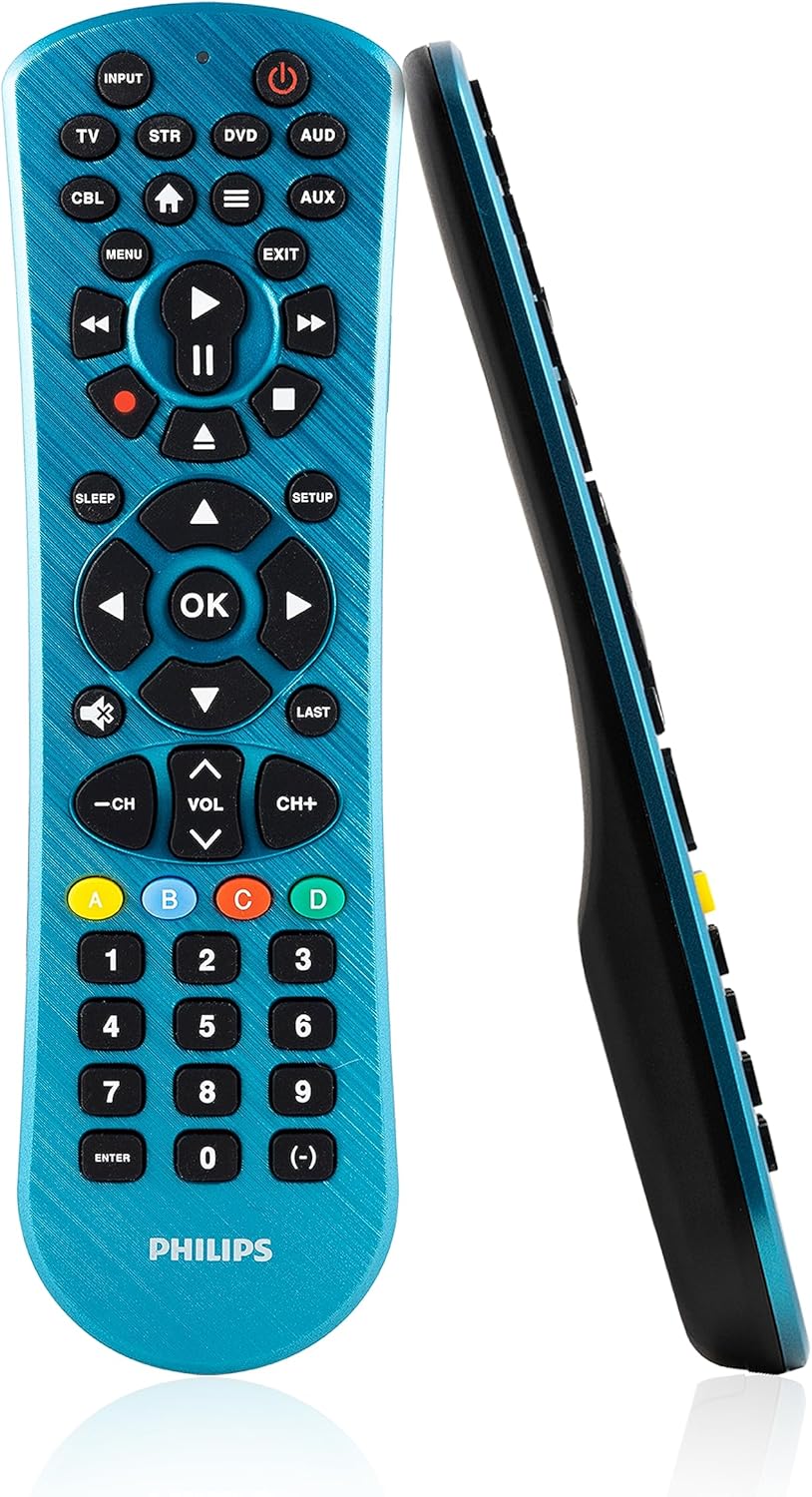
A Philips universal remote is a single device that can control multiple electronics in your home — TVs, streaming boxes, cable boxes, soundbars, DVD players, and more. Instead of keeping five different remotes on your coffee table, you control everything from one place.
Philips universal remotes use infrared (IR) technology. When you press a button, the remote sends an invisible infrared signal to your device. Each brand and device type responds to a different signal frequency, which is where philips universal remote codes come in. Each code tells the remote which ‘language’ to speak so your specific device can understand it.
Common Philips Remote Models You Might Have
Philips makes several remote series, and knowing your model helps you find the right codes faster. The most widely used ones include the SRP series (SRP2003, SRP2006, SRP3013, SRP4004, SRP5107) and the CL series (CL010, CL035, CL043, CL060). You will usually find your model number printed on the back of the remote near the battery compartment.
Who This Guide Is For
This guide is written for anyone who needs to set up or reprogram a Philips universal remote. It does not matter if your original TV remote broke, if you are setting up a brand-new home entertainment system, or if you are just trying to simplify things around the house. If you have a Philips universal remote and need the right codes, this is the guide for you.
Philips Universal Remote Codes — Full Device Breakdown
This is the section you came here for. Below you will find the most comprehensive and up-to-date code lists organized by device type. Try the first code listed. If it does not work, move to the next one. Most devices will respond to the first or second code in the list.
Philips Universal Remote Codes for TVs
TVs are the most common device people program a universal remote for. Here are the working codes for the biggest TV brands on the market today.
| TV Brand | Philips Universal Remote Codes |
| Samsung | 0101, 0100, 0102, 0103, 0812, 0178 |
| LG | 0178, 0156, 0050, 0021, 0217, 0004 |
| Sony | 0000, 0835, 0834, 0810, 0000, 0108 |
| Vizio | 0891, 0885, 0104, 0204, 0205 |
| TCL | 0178, 0017, 0050, 0888 |
| Hisense | 0178, 0217, 0050, 0102 |
| Toshiba | 0156, 0039, 0030, 0037, 0079 |
| Insignia | 0178, 0050, 0004, 0312 |
| Sharp | 0093, 0165, 0030, 0156 |
| Panasonic | 0054, 0250, 0132, 0131 |
If the first code does not work, do not give up. Simply try the next one in the list. Some older TVs or newer smart TV models may require a less common code, which is why each brand has several options listed.
Codes for Universal Philips Remote — Cable and Satellite Boxes
Cable and satellite boxes are the second most common device people program. Use the table below to find the right codes for your service provider.
| Provider | Remote Codes |
| Xfinity / Comcast | 0001, 0892, 0003, 0741 |
| DirecTV | 0566, 0178, 0001, 0741 |
| Dish Network | 0775, 0003, 0234, 0741 |
| Spectrum / Charter | 0001, 0003, 0741, 0892 |
| Cox | 0001, 0003, 0892 |
| Mediacom | 0001, 0741, 0003 |
Philips Code Universal Remote — Streaming Devices and Blu-ray Players
Streaming sticks and smart boxes have become part of almost every living room setup. Here is what works.
| Device | Remote Codes |
| Roku (Various) | 0178, 0003, 1140, 1037 |
| Apple TV | 0490, 0491, 0492 |
| Amazon Fire TV | 1037, 1141, 0003 |
| Sony Blu-ray | 0835, 0836, 0000, 0814 |
| Samsung Blu-ray | 0101, 0812, 0100 |
| LG Blu-ray | 0178, 0217, 0156 |
| Panasonic Blu-ray | 0250, 0054, 0131 |
Codes Universal Remote Philips — Sound Systems and Soundbars
Getting your soundbar programmed is a game changer. No more hunting for a second remote every time you want to adjust volume.
| Brand | Soundbar / Receiver Codes |
| Bose | 0546, 0547, 0548, 0549 |
| Yamaha | 0280, 0282, 0282, 0280 |
| Sony | 0835, 0000, 0810 |
| Samsung | 0101, 0812, 0102 |
| LG | 0178, 0050, 0217 |
| Vizio | 0891, 0885, 0204 |
| Polk Audio | 0546, 0280 |
Philips Remote Control Universal Code List — DVD Players and Older Devices
Older devices sometimes need a little more patience. They may not respond to the first code you try, especially if the device is from a discontinued brand. The following codes cover legacy DVD players and older TV brands that are still in wide use today.
| Device / Brand | Remote Codes |
| Magnavox DVD | 0054, 0093, 0030 |
| RCA DVD | 0039, 0030, 0037 |
| Funai DVD | 0093, 0030 |
| Sylvania DVD | 0093, 0030, 0031 |
| Emerson TV | 0156, 0030, 0021 |
| Sanyo TV | 0165, 0030, 0093 |
If you are working with a legacy device and none of the philips universal remote codes listed here work, the auto-search method covered in the next section is your best option. It scans through all stored codes automatically until it finds the one that works.
How to Program Your Philips Universal Remote
Now that you have your philips universal remote codes ready, let us talk about how to actually use them. There are three main methods for programming your remote, and which one you use depends on your situation.
Method 1 — Manual Code Entry
This is the most common method and works on virtually all Philips remote models. Follow these steps carefully.
- Turn on the device you want to control — your TV, cable box, or soundbar.
- Press and hold the Setup button on your remote until the red indicator light turns on and stays on.
- Press the device button that matches what you are programming (TV, DVD, AUX, etc.).
- Enter the 4-digit code from the list above using the number pad.
- The indicator light will turn off when the code is accepted.
- Point the remote at your device and press the Power button to test it.
- If the device turns off, the code worked. If not, repeat with the next code in the list.
The key thing to remember here is to keep the remote pointed toward the device during programming. Also, make sure your batteries are fresh — low batteries are the most common reason programming fails on the first attempt.
Method 2 — Auto-Search or Code Scan
If you do not know your device’s brand or none of the listed codes seem to work, the auto-search method will scan through all codes stored in the remote until it finds the right one.
- Turn on your device.
- Press and hold the Setup button until the indicator light stays on.
- Press the appropriate device button (TV, DVD, etc.).
- Press and hold the Play or Power button. The remote will start scanning through codes automatically, sending a signal every few seconds.
- When your device responds (turns off or changes input), immediately press the Stop button.
- Press Power to test. If the device turns back on, you found the right code.
This method takes a little more patience than manual entry, but it almost always works when nothing else does. Just stay in the room and watch your device while the scan runs.
Method 3 — Philips App or Online Code Lookup
Some newer Philips remote models support setup through the Philips website or a companion app. If your remote model has this feature, you can type in your device’s brand and model number online, and the system will tell you exactly which code to use. Check the Philips support page and search by your remote’s model number to see if this option is available for you.
Quick Tips Before You Start Programming
- Always use fresh batteries before programming — low power causes more failed attempts than anything else.
- Point the remote directly at the device at all times during setup.
- Write down or save the code that works. You will need it again if you ever reset or replace your remote.
- Try all codes for your brand before switching to auto-search. The manual method is faster when it works.
Troubleshooting: When Your Philips Universal Remote Codes Don’t Work
Even with the right code, sometimes things do not go as planned. Before you give up, work through these troubleshooting steps. Most problems have a simple fix.
The Code Works Once but Stops Working
If you programmed the remote successfully and it worked for a day or two, then stopped, the most likely cause is battery level. Replace the batteries first. If the problem continues, there may be infrared interference from other devices in the room, like a lamp with a dimmer switch or another remote. Try pointing the remote from a different angle or distance.
No Code in the List Seems to Work
If you have tried every philips universal remote code for your brand and nothing works, switch to the auto-scan method described above. If that still fails, check the exact model number on the back of your device and search for device-specific code lists. Some newer smart TV models and off-brand devices use codes that are not part of the standard code library.
The Remote Works but Some Buttons Are Missing
This is a very common issue, especially with volume control and input selection. Not all codes unlock every function on every device. If your main buttons work but a few do not, try a different code from the same brand’s list. Sometimes a secondary code unlocks a broader range of functions. This is especially true for smart TVs and cable boxes from providers like Comcast or Xfinity.
The Remote Programmed the Wrong Device
If you pointed the remote at the wrong device during setup and it picked up on that instead, you simply need to reset and start over. Most Philips remotes reset by pressing and holding the Setup button for about 10 seconds until the light flashes three times. Then re-enter your code from scratch.
Philips Universal Remote Codes by Remote Model
Different Philips remote models have slightly different code libraries. If you are unsure which codes to try, knowing your model number narrows things down significantly.
Philips SRP Series
The SRP series is Philips’ most popular line. These remotes come pre-loaded with thousands of philips universal remote codes and work with nearly every major brand. The SRP2003 and SRP2006 are designed for basic two-device setups, while the SRP3013 and higher models handle up to eight devices at once. The SRP5107 even includes backlighting for dark room use. All SRP remotes use the same code entry method described above.
Philips CL Series
The CL series is an older but still widely used line of universal remotes. The CL035 and CL043 are particularly common. These remotes have a slightly smaller code library than the SRP series, which means you may need to rely on auto-scan more often for newer devices. The programming steps are identical to those described in Section IV.
Older and Discontinued Philips Remote Models
If you have a Philips remote from before 2010 and cannot find it in any current list, do not worry. The programming method is the same, but the code library may be smaller. Philips’ official support website maintains an archive of code lists for discontinued models sorted by remote model number. Your remote’s model number is printed on the back under the battery cover.
Pro Tips for Getting More Out of Your Philips Universal Remote
Once you get the basics working, there are a few extra things you can do to make your Philips remote even more useful. These tips are especially helpful if you have a more advanced SRP or CL model with extra features.
- Program your most-used devices first. If you mostly watch cable TV, set that up before worrying about your Blu-ray player.
- Use the Favorite Channels feature if your remote model supports it. You can store your top 10 channels for one-button access.
- Keep your original remote stored safely even after setting up the universal remote. Some device settings can only be changed from the original manufacturer’s remote.
- Write your working codes on a sticky note and keep it in the battery compartment. The next time the batteries die and the remote loses its programming, you will have the code right there.
- If you are setting up a shared room — like a family TV area — label each device button on the remote with a small piece of tape so everyone knows which button does what.
- Check the Philips website periodically. They occasionally release updated code lists that include newer device models not covered in older manuals.
- Community tech forums are a surprisingly good resource. If you are stuck on a specific device that is not in any official list, chances are someone has already figured it out and posted the solution.
Wrapping Up
Getting your entertainment setup working from a single remote is one of the most satisfying things you can do for your living room. Once everything is programmed correctly, you will wonder how you ever managed with a pile of different remotes.
Finding the right philips universal remote codes is the first step, and hopefully this guide made that easy. Whether you needed TV codes, soundbar codes, cable box codes, or help troubleshooting a stubborn device, everything is covered above. The code tables are scannable, the setup steps are straightforward, and the troubleshooting section should handle anything unexpected that comes up.
If you tried a specific code and it worked well for a device not commonly listed, share it with others. Online communities and tech forums are full of people who are stuck in the same place you were before finding this guide. A quick comment with a working code can save someone else an hour of frustration. Keep this page bookmarked. Remotes lose programming when batteries die, get replaced, or get reset accidentally. The next time that happens, your codes will be right here waiting for you.
FAQ 1: What are Philips universal remote codes and how do they work?
Philips universal remote codes are pre-programmed numeric codes that allow your remote to communicate with various devices. Each brand and model of electronic device has specific codes that must be entered into the remote to establish a connection. Apple Gazette When you enter the correct code, the remote learns to send the right infrared signal to your device, eliminating the need to keep multiple remotes on hand.
FAQ 2: Are Philips universal remote codes 3-digit, 4-digit, or 5-digit?
Philips universal remote 4-digit codes are the most common, though some models use 5-digit codes. DTV Answers Older Philips remotes from before 2010 may use 3-digit codes. The newer TAPR802 model, for example, requires 5-digit code entry — you press and hold buttons 1 and 6 simultaneously for 5 seconds to enter setup mode, then enter the 5-digit code. Philips Always check your remote model’s manual to confirm which format applies.
FAQ 3: How do I enter a Philips universal remote code manually?
Turn on the TV, then press and hold the Setup button on your Philips remote until you see the red light. Press the TV button or the device you want to control, then enter the pairing code using the number pad. After entering the code, press the Power button to check if it is working. YTECHB If the device turns off, the code worked. If not, repeat the process with the next code in the list.
FAQ 4: What do I do if the red indicator light turns off too quickly during setup?
If the red indicator light disappears right after pressing the Setup button, release and press it again. DTV Answers You need to hold the Setup button firmly until the red light stays steady on its own before releasing it. Rushing this step is one of the most common reasons people struggle with programming. Weak batteries can also cause this — replacing them before you start often solves the problem entirely.
FAQ 5: Can I program a Philips universal remote without a code?
Yes, absolutely. The Auto Code Search method does not require you to know the code ahead of time. Press and hold the Setup button until you see the red indicator light, press the device button, then press the Power button once — the remote will begin searching for pairing codes automatically, and you can see the red indicator flashing on the remote as it cycles through them. YTECHB When your device turns off, stop the scan and save the code.
FAQ 6: How do I use the auto code search on a Philips universal remote?
Turn on your device, then press and hold the Setup button on the remote until you see a red light. Press the TV or device button, then press and release the Power button — the remote will send a batch of 10 codes. PC Guide Watch your device closely. The moment it turns off, press the device button to lock the code in, then test with Volume and Power to confirm everything works correctly.
FAQ 7: Why does my Philips remote flash rapidly and not accept any code?
After a valid code entry, the red light indicator turns off. For an invalid code, the red light indicator flashes first and then turns off. DirecTutor If the light flashes on every code you enter, it usually means the code is not in the remote’s library for that device. Try every code listed for your brand, then switch to the auto-scan method. If that also fails, your device may use a proprietary signal not stored in the remote’s database — contacting Philips support with your device’s model number is the next step.
FAQ 8: What are the most reliable Philips universal remote codes for Samsung TVs?
The most commonly used Samsung codes include 0112, 0309, 0209, 0512, 0302, 0502, 0002, 0102, 0110, 0818, 0895, 0437, 0802, 0103, 0609, 0012, and 0212. YTECHB Start with 0112 or 0102 — these tend to work across the widest range of Samsung models including newer QLED and Neo QLED smart TVs.
FAQ 9: What Philips universal remote codes work for LG TVs?
For LG TVs, the most commonly working codes are 0178, 0156, 0050, 0021, and 0217. The code 0178 is widely regarded as the go-to starting point for LG because it covers a large number of models from different manufacturing years. If you try a code and the remote does not respond, keep trying the other codes listed for your brand before moving to the auto-search method.
FAQ 10: Do Philips universal remote codes work with smart TVs?
Yes, Philips universal remotes are compatible with most major brands of TVs, Blu-ray and DVD players, and other audio and video devices. DTV Answers However, smart-TV-exclusive functions — like opening Netflix, launching an app menu, or using voice search — may not be fully accessible through a universal remote code. Basic controls like power, volume, channel, and input switching work reliably on most smart TV brands.
FAQ 11: How do I find the programmed code already stored in my Philips remote?
Press and hold the Setup button until the indicator light stays on, press and release the device button (TV, DVD, AUX, etc.), then press and release the Info button to display the programmed code. Apple Gazette Not all Philips remote models support this feature — it is more common on the SRP4004 and higher-end SRP series remotes. If your model does not support code display, the auto-scan method is the easiest way to re-establish a working code.
FAQ 12: What should I do if none of the Philips universal remote codes work for my device?
If the remote is not working with any code, try replacing its batteries. If this does not work, there may be something wrong with your remote, and you will have to either get it repaired or purchase a new one. PC Guide Before concluding that, also try the full auto-scan, check whether your device brand has secondary or regional codes, and confirm the remote is pointed directly at the device’s IR sensor without any obstructions.
FAQ 13: Why do only some buttons work after programming with a Philips remote code?
This is a common experience. If some buttons do not operate your device, try one of the other codes for your brand. RCA Universal Remote Control Different codes for the same brand unlock different button functions. For example, one code might handle power and volume but not input selection, while another code activates a broader set of controls. Working through all available codes for your brand is the most reliable fix for this issue.
FAQ 14: How do I reset a Philips universal remote to factory settings?
Most Philips universal remotes reset by removing the batteries, holding any button for about 10 seconds to drain residual power, and then reinserting fresh batteries. If you are re-programming the remote, it is suggested to reset the remote control by removing the batteries for 2 minutes before starting the setup again. Universalremotehelp After the reset, all previously saved device codes will be cleared and you will need to re-enter them from scratch.
FAQ 15: Can a Philips universal remote control a cable or satellite box?
Yes. Philips universal remotes support major providers including Xfinity/Comcast, DirecTV, Dish Network, Spectrum, Cox, and Mediacom. DirecTV codes include 0863, 0864, 0564, and 0763, while Dish Network codes include 0167 and 0366. Philips Use the STB, SAT, or CBL button on your remote when entering codes for cable and satellite boxes, not the TV button.
FAQ 16: What is the difference between Direct Code Entry and Auto Code Search on a Philips remote?
Direct Code Entry requires you to already know the 4 or 5-digit code for your specific device brand, which you then enter manually. The Auto Code Search method does not require a specific code — the remote scans through codes automatically and tests each one against your device. YTECHB Direct Code Entry is faster when you have the right code, while Auto Code Search is the better fallback when the code is unknown or unlisted.
FAQ 17: How many devices can a Philips universal remote control at once?
It depends on the model. Entry-level Philips remotes like the SRP2003 and SRP2006 handle up to two devices. Mid-range models like the SRP3013 support up to four devices, while higher-end options like the SRP4004 and SRP5107 can manage up to six or eight devices simultaneously. Each device must be set up separately by pressing its corresponding device selection button and entering its code individually.
FAQ 18: Why does my Philips universal remote keep losing its programming after I change the batteries?
This is a known behavior on some older Philips remote models. The programmed code is stored in the remote’s memory, and on certain models, this memory is not protected against power loss. It is recommended to take a photo of the code booklet using your smartphone and save it on your phone or cloud storage in case you lose the code — this makes re-programming after battery replacement take only seconds.
FAQ 19: Can I use Philips universal remote codes for a Blu-ray player?
There are known working device codes for Philips Blu-ray DVD players that should work with any universal remote using the standard IR protocol. DirecTutor For Sony Blu-ray players, common codes include 0835, 0836, and 0814. For Samsung Blu-ray players, try 0101 or 0812. Use the DVD or BD button on your Philips remote — not the TV button — when setting up a Blu-ray player.
FAQ 20: What Philips remote codes work for soundbars and home theater systems?
Soundbars are programmed using the AUD or AUX button on your Philips remote. Philips soundbar 4-digit remote control codes are available — try 4-digit codes first when setting up audio devices. DirecTutor For Bose soundbars, start with codes 0546 through 0549. Yamaha receivers respond well to 0280 and 0282. If no listed code works, the auto-scan method consistently finds a match for most major audio brands.
FAQ 21: How do I program a Philips universal remote for a Roku or streaming device?
Program streaming devices using the AUX, STREAM, or STB button on your remote, depending on your model. Roku devices respond to codes 0178, 1037, and 1140 on most Philips remotes. With both the automatic and manual methods, you can program your Philips universal remote to a streaming device, and if you have trouble, you can also try a universal remote app to control the device through your smartphone.
FAQ 22: Does firmware on a smart TV affect whether Philips remote codes work?
Yes, it can. Firmware updates on the TV can affect code compatibility, so it is worth checking for updates if problems persist after programming. JustAnswer Some smart TV manufacturers update their IR signal protocols as part of major firmware releases, which can cause a previously working remote code to stop responding. If this happens, re-run the auto-scan to find a new working code, or check the Philips website for an updated code list for your TV’s current firmware version.
FAQ 23: Are Philips universal remote codes the same across all remote models?
Not always. The code list differs depending on the version of the universal remote. Newer V02 models use a different set of codes than older versions — always check the label inside the battery compartment to identify your remote’s version before looking up codes. Philips Using a V02 code list on an older remote (or vice versa) will result in failed programming attempts even if the code appears correct.
FAQ 24: Where can I find the official Philips universal remote code list for my specific model?
You can visit the official Philips universal remote code finder page for all brands and devices. PC Guide Philips also hosts downloadable PDF code lists for every SRP and CL series remote on their documents portal. The easiest path is to search “Philips [your model number] code list PDF” — this takes you directly to the official document for your exact remote. The manual that came in the box also includes a printed code list organized by device type and brand name.